What Are ChatGPT Skills? How to Create, Install and Use Them
What ChatGPT skills are, how they differ from prompts, how to create, install and use a skill, plus a complete weekly Google Ads summary skill built on the ppcfy.ai MCP server.
Updated 2026-11-17 · 12 min read · ppcfy.ai team
ChatGPT skills are saved, reusable workflows that tell ChatGPT how to complete one specific task in the same way every time. You write the steps once in a SKILL.md file, or ask ChatGPT to write the file for you. After that, ChatGPT can use the skill by itself when your request matches it, or you can call it by typing @ and the skill's name.
Unlike a regular prompt, a skill is stored in your account, can carry files, templates, and code, and can be shared with a team. This guide explains what ChatGPT skills are, how they differ from prompts, how to create, install, and use a skill, and which skills are useful for Google Ads. It ends with a complete weekly summary skill for Google Ads that reads live data through the ppcfy.ai MCP server.
What are ChatGPT skills?
ChatGPT skills are reusable packages of instructions, each built for one kind of task. Think of a skill as a small playbook that you write once and ChatGPT reads every time the task comes up.
A skill usually has three parts:
- A name and a short description. ChatGPT uses the description to decide when the skill fits your request.
- The instructions. These are the steps ChatGPT follows. They are written in a plain text file called SKILL.md.
- Supporting material. Templates, examples, brand rules, data schemas, or access to your connected apps. A skill can also include code, for steps that must run exactly the same way each time.
What is a SKILL.md file?
SKILL.md is the instruction file of a skill. It is written in Markdown, which is plain text with simple marks such as # for a heading and - for a list item. You can open it in any text editor, change it, and copy it to another tool.
A good SKILL.md answers five questions: what the skill does, what input it needs, which steps to follow, what the output should look like, and what to check before the answer is final. It follows the open Agent Skills format, so the same skill can move between products that support that format.
ChatGPT skills vs prompts: what is the difference?
A prompt is an instruction you type into one chat. A skill is an instruction that ChatGPT keeps for you and can apply again in later chats.
| Regular prompt | Skill | |
|---|---|---|
| Where it lives | In one chat, or in a note you copy from | Saved in your account, in the Skills tab |
| How you start it | You paste it every time | ChatGPT picks it when your task matches its description, or you type @ and its name |
| What it can contain | The text you write | Instructions plus files, templates, examples, and code |
| Consistency | Depends on what you remember to paste | Same steps and same output format every time |
| Sharing | You copy the text and send it | You can share the skill with colleagues, if your workspace allows it |
| Best for | One-off questions and quick drafts | Tasks you repeat that have steps, a fixed format, or rules |
The practical difference is who carries the instructions. With a prompt, you carry them: you must remember them and paste them. With a skill, ChatGPT carries them.
What are ChatGPT skills used for?
Skills pay off when a task repeats and a good result depends on a fixed process. The usual signs are several steps, a strict format, or rules about what must and must not appear in the answer.
Good uses for a skill:
- Recurring reports, such as a weekly or monthly client summary
- A standard email or message with a fixed structure
- Style rules, such as a brand voice or a house format for documents
- Work that pulls data from the same connected app every time
The main benefits are consistency, less typing, shared team standards, and built-in checks.
A skill is not worth the effort for a one-off question or a task you will do only once. A normal prompt is faster there.
A simple rule of thumb: if you have pasted the same instructions into ChatGPT more than twice, turn them into a skill.
How to create a skill in ChatGPT
You can create a custom skill in ChatGPT in three ways: in a chat, in the Skills editor, or by uploading a skill file. For a first skill, the chat way is the easiest, because ChatGPT writes the skill file for you with a built-in helper called skill-creator.
- Choose a task you repeat. Before you write anything, know the input (what you usually give ChatGPT), the output (the format, tone, and length you expect), and the guardrails (what must be included and what must never happen).
- Ask ChatGPT to build the skill. Open a new chat and start with "Build me a skill that...". You can also open Plugins in the sidebar, go to the Skills tab, select Create, and choose Create with chat.
- Describe the skill with five parts: the job the skill does, the inputs it needs, the steps (numbered), the output format (with an example if you have one), and the final quality checks.
- Check the result. ChatGPT builds the skill and may ask follow-up questions. Depending on your account, it either shows a draft with an Install button or saves the skill right away as a private plugin. Ask for changes until the steps match how you work.
- Test it on a real task. Run the skill, check the result, and fix any step that gave a wrong or vague answer.
Create with editor, in the same Create menu, lets you write the skill yourself. Skills are not available on every plan, so see the FAQ below if you cannot find the Skills tab.
How to write a skill that works well
- Write a specific description. ChatGPT uses the description to decide when to use the skill, so say what the skill does and when it should be used.
- Give one skill one job. A skill that researches, writes, and publishes is hard to test. Make three small skills and use them together.
- Add final checks. A line such as "every number must come from the data" catches errors before you see the answer.
How to install a skill in ChatGPT
To install a skill in ChatGPT, select Install on the skill's draft or, for a shared skill, in the Skills tab. Some accounts save a new skill automatically as a private plugin, so no install step is needed. Created and installed skills are listed in the sidebar under Plugins. There are three ways to get a skill into your account:
- Create a skill in chat. Select Install on the draft if ChatGPT shows one. Otherwise ChatGPT has already saved the skill as a private plugin, and you open it with Open created plugin.
- Install a skill that someone shared with you. Open Plugins, go to the Skills tab, and open Shared with me (or the list shared by your workspace). Select the three dots next to the skill and choose Install.
- Upload a skill file. On the Skills tab, select Create, then Upload from your computer. ChatGPT scans an uploaded skill before it becomes available, and you should only upload skills from sources you trust.
How to use a skill in ChatGPT
ChatGPT can choose an installed skill by itself when your request matches the skill's description. You can also choose it yourself: type @ in the message box and select the skill by name. You can use several skills in one job, for example one that collects data, one that writes a draft, and one that checks quality. Skills can also use the apps you have connected to ChatGPT, but they cannot reach anything you have not connected.
Useful skills for Google Ads in ChatGPT: 6 examples
The most useful skills for Google Ads are the ones that automate a review you repeat every week or month. Each skill below holds the process: which data to pull, what to compare, and how to write the result. The data comes from your Google Ads account through an MCP server. The tools in the table are tools of the ppcfy.ai MCP server.
| Skill | What it does | ppcfy.ai MCP tools |
|---|---|---|
| weekly-campaign-summary | Writes a short weekly email for a client with the three biggest changes and up to three actions | monthly_report_basic, search_terms_table |
| search-terms-waste-review | Finds search terms with spend and no conversions and lists negative keyword candidates for your approval | search_terms_table, negative_keywords |
| budget-pacing-check | Flags campaigns that spend too fast, too slow, or are limited by budget | budget_pacing_table |
| conversion-tracking-check | Reviews primary conversion actions, attribution, conversion windows, and naming | conversion_diagnostics |
| monthly-client-report | Turns the monthly KPI facts and change activity into a client-ready report | monthly_report_basic |
| account-audit | Runs a structured audit and writes the findings, after asking for the period, language, and website | google_ads_audit |
These skills only read data. The ppcfy.ai MCP server requires your explicit confirmation before it makes any change in the account. The next section shows the first skill in full, and you can build the other five with the same four steps.
Weekly summary skill for Google Ads: full example
This weekly summary skill for Google Ads writes a short performance email for a client every week. It reads live numbers from the Google Ads account through the ppcfy.ai MCP server, so you do not upload any spreadsheet. You need four steps: connect the server, create the skill, open it, and run it.
Step 1: Connect the ppcfy.ai MCP server
- In ChatGPT, open Plugins and choose Add custom MCP server. Menu names differ between plans and app versions, and in a managed workspace your admin may need to allow custom MCP servers.
- Enter the server address:
https://mcp.ppcfy.ai/mcp2. - Sign in with your Google account and choose the Google Ads account you want to report on.
- Test the connection with a read-only question, for example: "List my Google Ads accounts."
The free tier includes 100 requests per month. The full step-by-step setup, with a video, is on the ppcfy.ai MCP page.
Step 2: Create the skill
Open a new chat in ChatGPT and paste the prompt below. It asks ChatGPT to build the skill for you. The instructions inside the prompt become the content of the skill's SKILL.md file, which ChatGPT will follow every time you use the skill.
Build me a skill called weekly-campaign-summary.

What it does:
Writes a short weekly performance email for a Google Ads client, using live data from the ppcfy.ai MCP server.

Requirements:
- The ppcfy.ai MCP server is connected to ChatGPT.
- Find the available Google Ads accounts and ask which one to summarize.
- The user gives the Google Ads account ID or a name and the monthly goal.

Steps:
1. Call monthly_report_basic for the last full week (date_preset LAST_WEEK) with include_previous_period set to true. It returns the account KPIs, the campaign KPIs, the previous-period comparison, and the changes made in the account.
2. Call search_terms_table for the same week. Find search terms that have spend and no conversions.
3. If the previous-period comparison is missing from the result, say so. Do not make week-on-week claims without it.
4. Pick the three biggest changes in cost, conversions, and CPA or ROAS compared with the previous period.
5. Explain each change in one or two plain sentences. Mention an account change from step 1 only as context, never as proof of the cause.
6. Suggest up to three actions for next week. At least one action must come from the search terms with spend and no conversions.

Output format:
- A short email: greeting, three changes, up to three actions, closing.
- Plain language. No jargon. No tables.

Final checks:
- Every number in the email comes from the MCP tool results.
- Do not give a reason for a change that the data does not show.
- Do not change anything in the account. This skill only reads data.
monthly_report_basic and search_terms_table are tools of the ppcfy.ai MCP server. If something in your prompt is unclear, ChatGPT asks follow-up questions, and then it writes the skill file. If ChatGPT cannot create skills in your account, see the FAQ about availability.
Step 3: Open the created skill
When ChatGPT finishes, it shows a Created successfully card and saves the skill as a private plugin named Weekly Campaign Summary, which holds one skill, weekly-campaign-summary. In our test on a personal ChatGPT account there was no Install button, because ChatGPT saved the skill right away. If your account shows a draft with an Install button instead, select it.
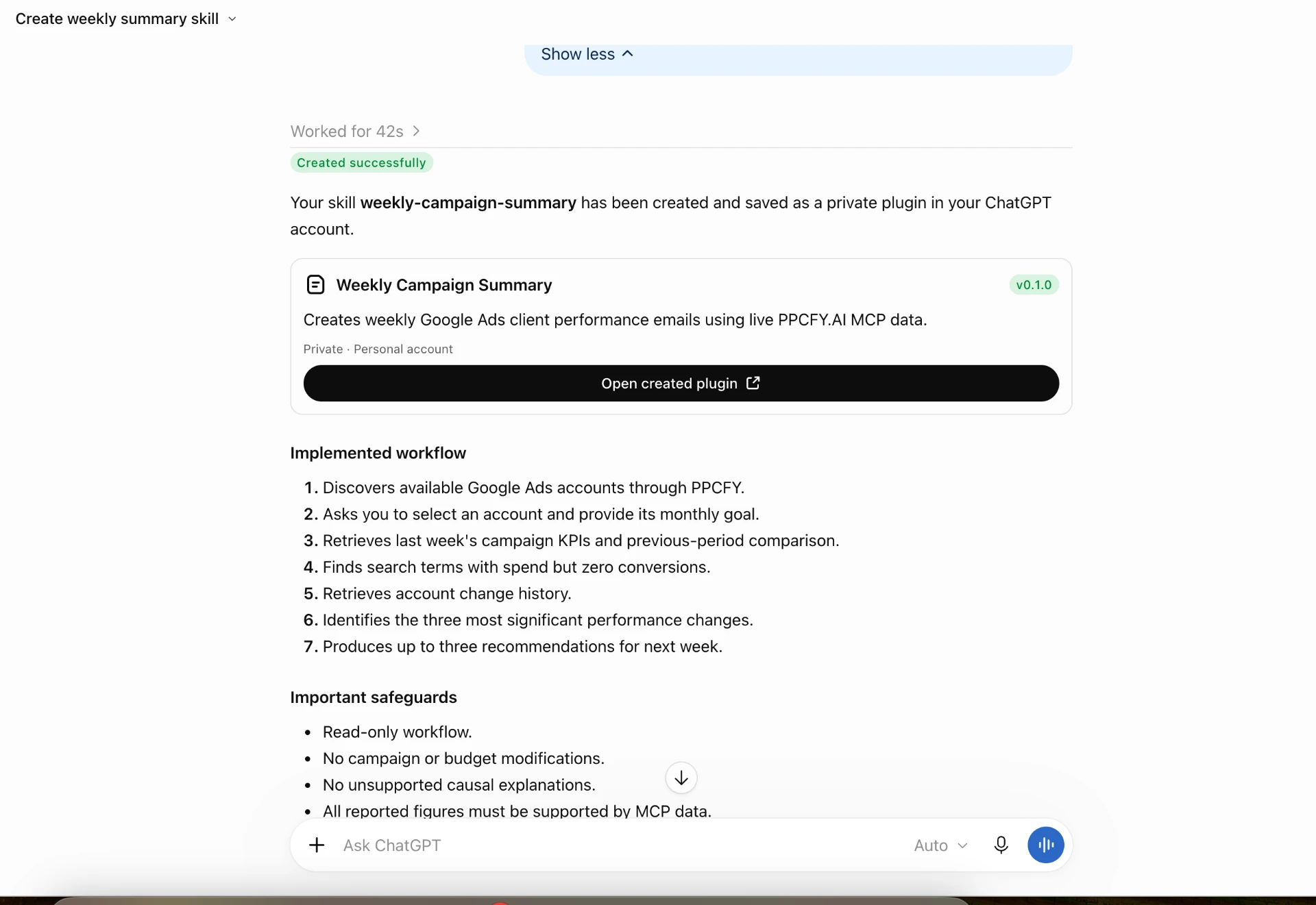
Then select Open created plugin. The plugin page lists the skill under Skills and has two buttons: Settings and Try in chat.
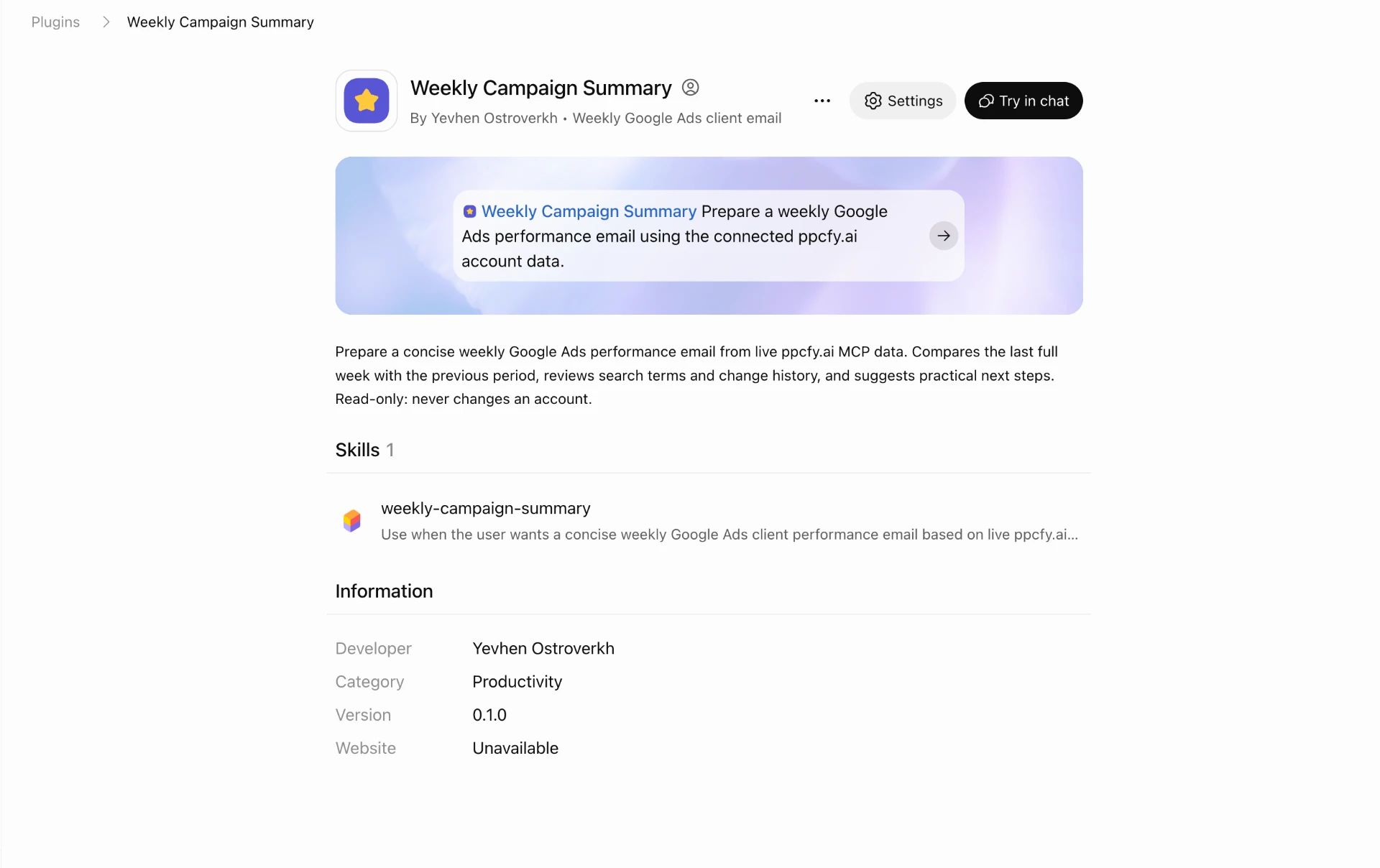
Step 4: Run the skill
On the plugin page, select Try in chat. You can also start a new chat, type @, and select Weekly Campaign Summary. ChatGPT fills the message box with a starter prompt, for example:
@Weekly Campaign Summary Prepare a weekly Google Ads performance email using the connected ppcfy.ai account data.
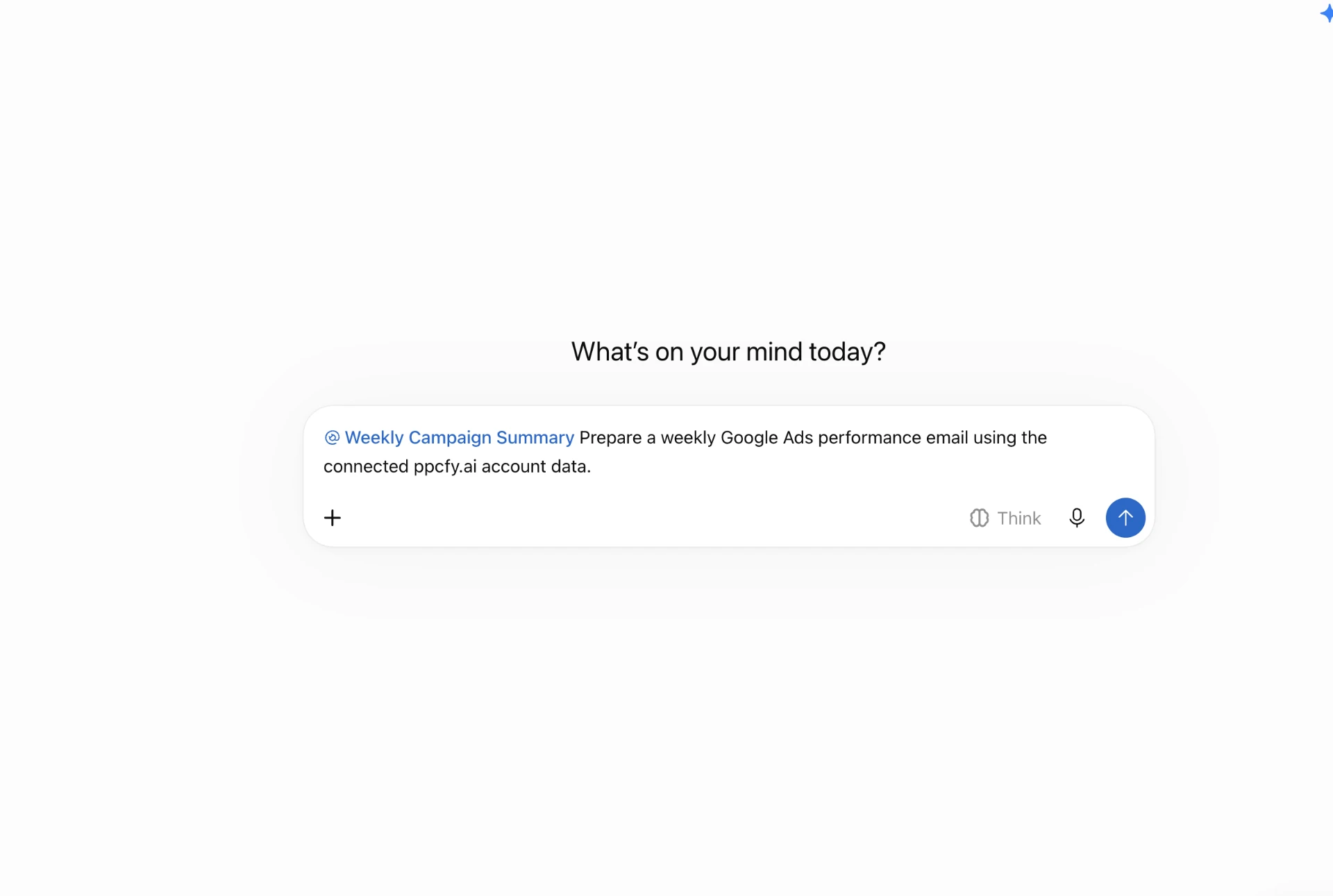
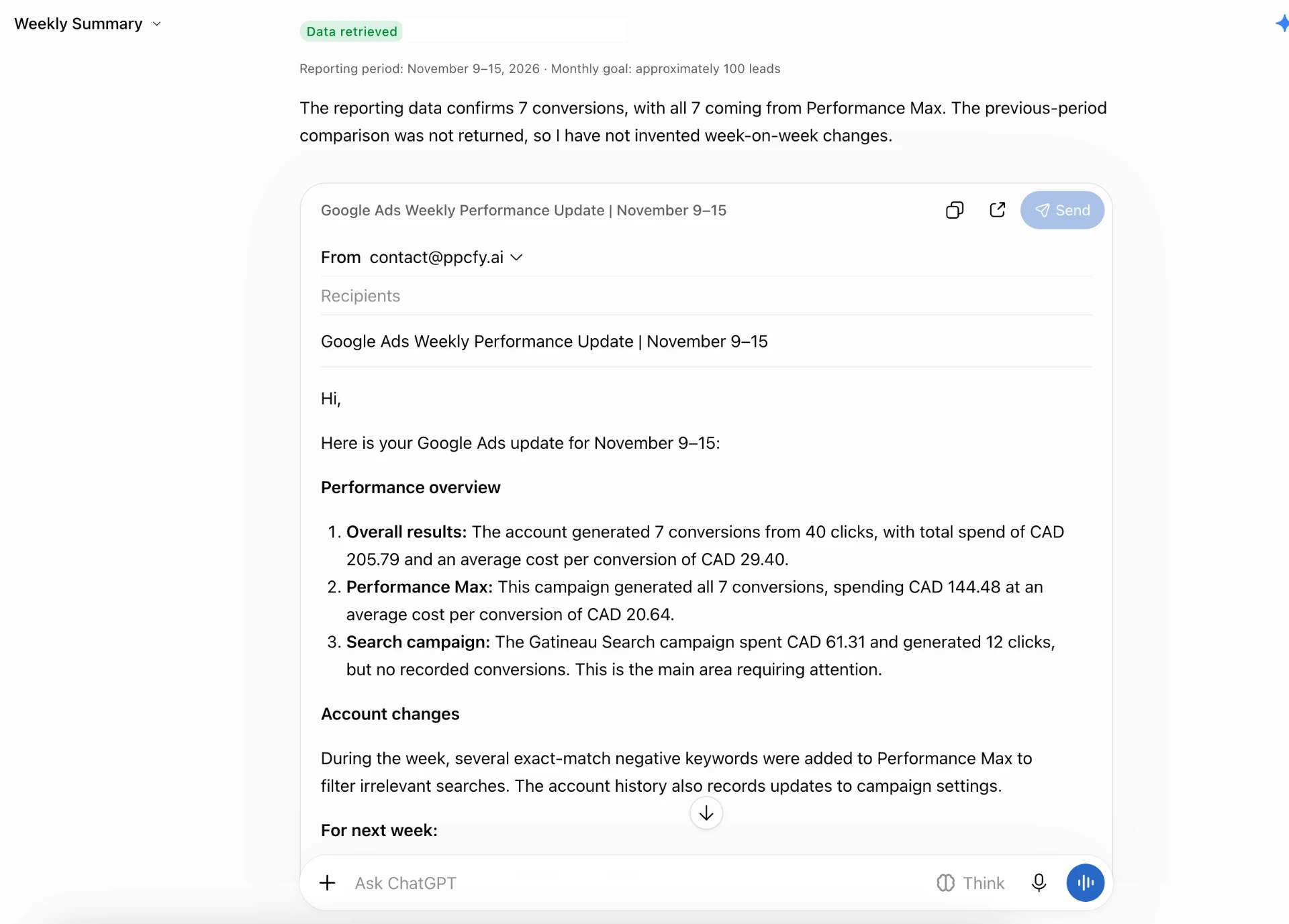
Send the message and answer the questions about the account and the monthly goal. ChatGPT then reads the data through the MCP server, checks the numbers, and writes the email in the format you defined. If you use a different MCP server, change the tool names in steps 1 and 2 of the prompt to match its tools.
FAQ
What is the difference between a ChatGPT skill and a custom GPT?
A custom GPT is a separate assistant that you open and chat with. A ChatGPT skill is a workflow that you add to your account and use inside normal chats, either automatically or with @. In some accounts, OpenAI also lets you move the instructions and knowledge of a custom GPT into a plugin, which can include skills.
Do I need to know how to code to make a ChatGPT skill?
No. You describe the task in normal language, and ChatGPT writes the skill for you. A skill file is plain text, so you can also edit it yourself.
Can a ChatGPT skill use my Google Ads data?
Yes, if the data comes from an app or an MCP server that is connected to ChatGPT. The weekly summary skill above reads live Google Ads data through the ppcfy.ai MCP server.
Can I use ChatGPT skills in other AI tools?
Yes. ChatGPT skills follow the open Agent Skills format, so you can download a skill from one product and install it in another tool that supports the format, for example in Codex.
Why can I not see skills in my ChatGPT?
OpenAI lists Personal Skills for ChatGPT Business, Enterprise, Healthcare, and Edu. Availability can differ by plan, workspace settings, your role, and the ChatGPT app you use. To find skills, open Plugins in the sidebar and look for the Skills tab. If it is missing, check your plan, and in a managed workspace ask your admin to turn skills on.
Do my skills sync between ChatGPT on desktop and on the web?
No. ChatGPT does not copy personal skills automatically between desktop and web or mobile. Add the skill separately in each place where you use it.