Google Ads MCP Server: What It Is + How to Connect Claude (Free, 2026)
What an MCP server is, what a Google Ads MCP server does, and a step-by-step guide with screenshots and video to connect Claude to Google Ads and GA4 for free — no Cloud project, no developer token.
Updated 2026-08-06 · 10 min read · ppcfy.ai team
If you have landed here you are probably asking one of three things: what is an MCP server, is there an MCP server for Google Ads, and how do I connect Google Ads MCP to Claude for free. This guide answers all three — with screenshots and a 90-second video of the full setup.
Short version: yes, there is a free Google Ads MCP server. It is hosted, it takes about two minutes to connect, and you do not need a Google Cloud project or a Google Ads API developer token.
What is an MCP server?
MCP stands for Model Context Protocol — an open standard that lets an AI assistant call real tools and read real data instead of guessing from text you paste into the chat.
An MCP server is the piece that exposes those tools. Your AI client (Claude, ChatGPT, or any MCP-compatible app) is the client; the MCP server sits on the other side and says "here are the tools I offer, here is what each one needs, here is what it returns." When you ask a question, the model decides which tool to call, the server executes it against the real system, and the answer comes back grounded in actual data.
Three properties matter in practice:
- Tools, not text. The model runs a query; it does not hallucinate a number off a screenshot.
- Scoped permissions. The server decides what is readable and what is writable. Nothing else is reachable.
- Remote or local. Local MCP servers run as a process on your machine. Remote MCP servers are hosted over HTTPS with OAuth — nothing to install. ppcfy.ai is remote.
What is a Google Ads MCP server?
A Google Ads MCP server connects an AI assistant to your live Google Ads account through the Google Ads API. Instead of exporting a CSV and pasting it into chat, you ask a question and the assistant pulls the report itself.
The ppcfy.ai MCP server is not a thin API wrapper. It ships PPC-native tools built around how account work actually happens:
| Area | What the AI can pull |
|---|---|
| Account health | KPIs, spend trends, impression share losses, budget caps |
| Campaigns | Settings, bidding strategies, geo & network config, ad schedules |
| Keywords & search terms | Match types, quality signals, wasted-spend terms, negatives |
| Ads & assets | RSA strength, headlines, sitelinks, callouts, PMax asset groups |
| Shopping | Product-level performance, feed issues |
| Conversions | Conversion actions, attribution setup, tracking warnings |
| Audit | A structured audit playbook that runs a full account review |
| GA4 | Sessions, landing pages, paid vs organic comparisons |
Everything is read-only by default. Write actions exist (negatives, pausing, RSA and sitelink edits) but only after you flip an explicit consent toggle in your account, and every change still goes through a preview → confirm → apply flow inside the chat.
Is the Google Ads MCP server free?
Yes. Every ppcfy.ai account includes 100 free MCP requests per month — no credit card, no trial countdown, no expiry. One "request" is one tool call, so a typical analysis question costs a handful.
If you burn through 100 in a month, email contact@ppcfy.ai and tell us what you are building — we raise limits for real use cases, for free, in most cases within a day.
What you do NOT need
- ❌ A Google Cloud project
- ❌ A Google Ads API developer token
- ❌ OAuth client credentials
- ❌ Node, Docker, or a local process babysitting a token
- ❌ A paid plan
Just a Google account with access to the Ads account you want to analyze.
Watch the full setup (90 seconds)
How to connect Google Ads MCP to Claude — step by step
The whole flow takes about two minutes. Works in Claude Desktop and on claude.ai (custom connectors).
Step 1 — Open Claude Settings
Click your profile at the bottom-left of Claude and choose Settings.
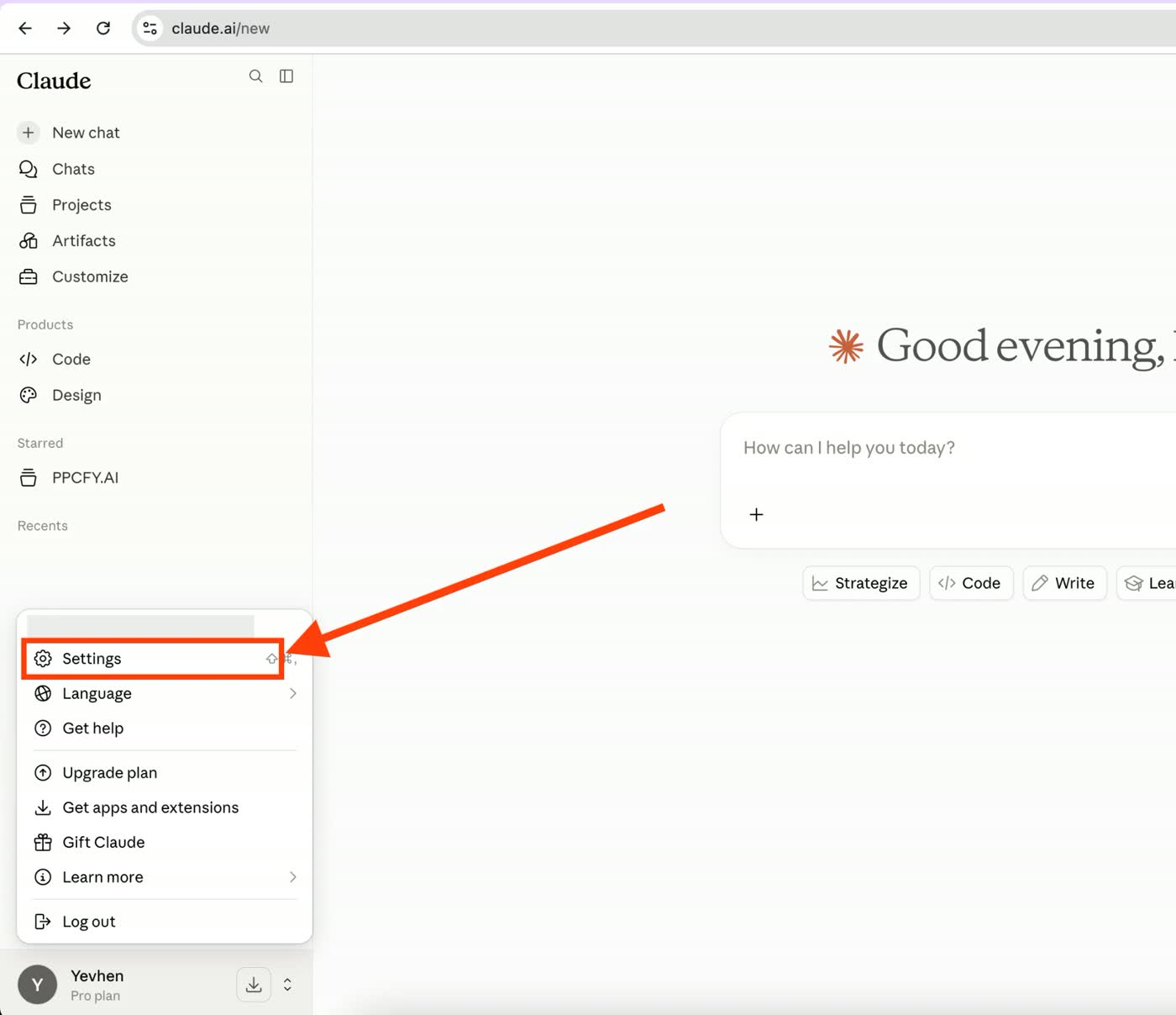
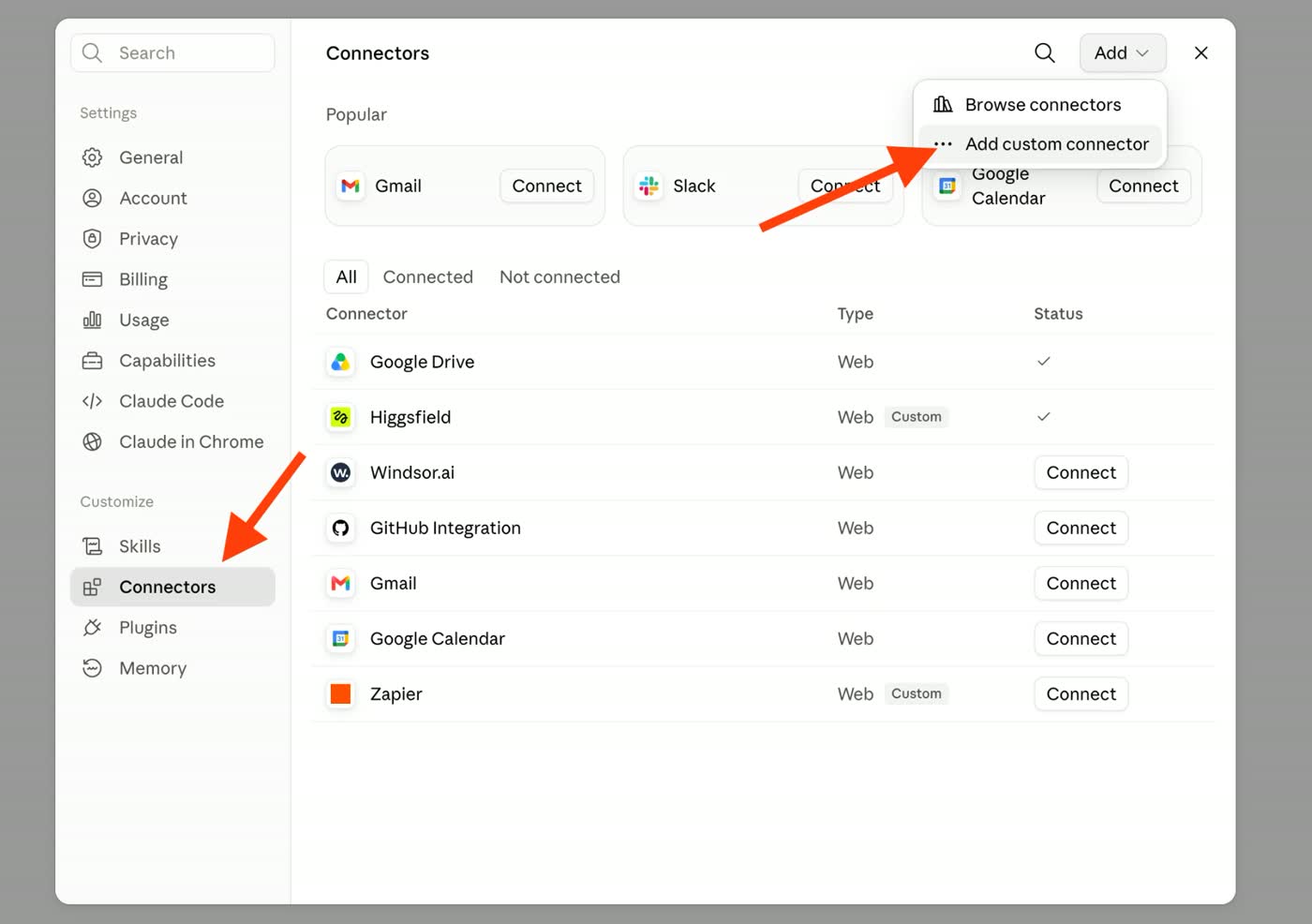
Step 2 — Go to Connectors → Add custom connector
In the left menu, open Connectors, then click Add → Add custom connector in the top right.
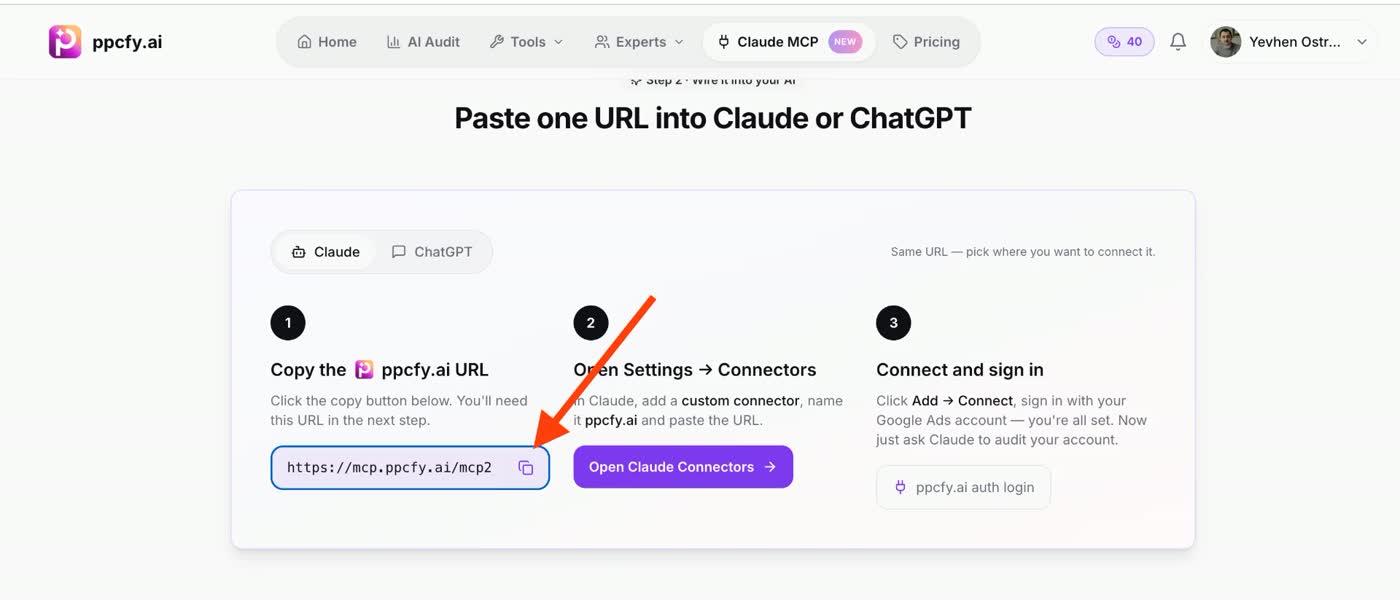
Step 3 — Copy the ppcfy.ai MCP server URL
Open /mcp-connect in another tab and copy the server URL:
https://mcp.ppcfy.ai/mcp2
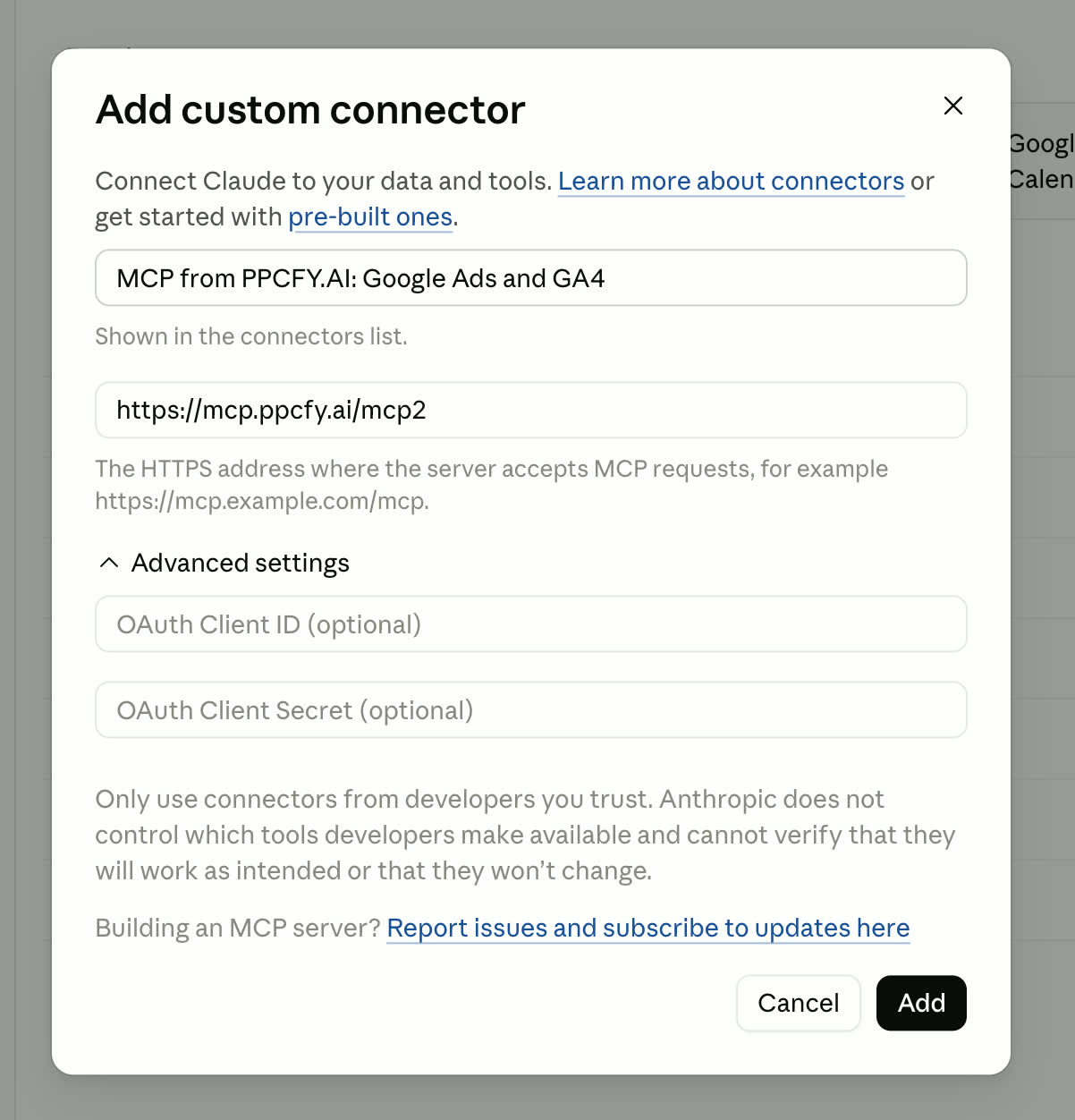
Step 4 — Paste the URL and add the connector
Give it a name — for example MCP from ppcfy.ai: Google Ads and GA4 — paste the URL, and click Add. Leave the OAuth Client ID and Secret fields empty: the server handles OAuth for you.
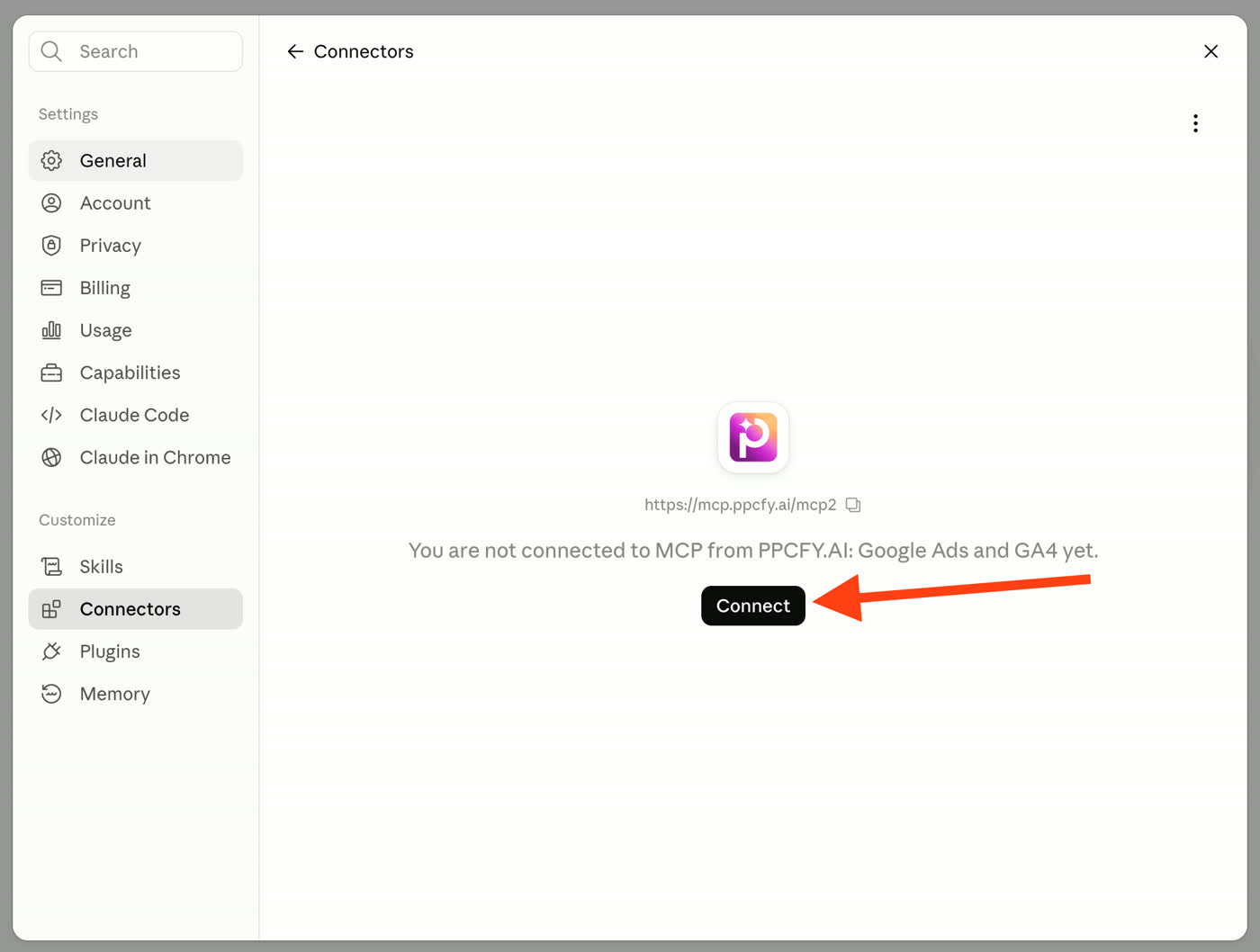
Step 5 — Click Connect
The connector appears with a Connect button. Click it and Claude opens the ppcfy.ai authorization window.
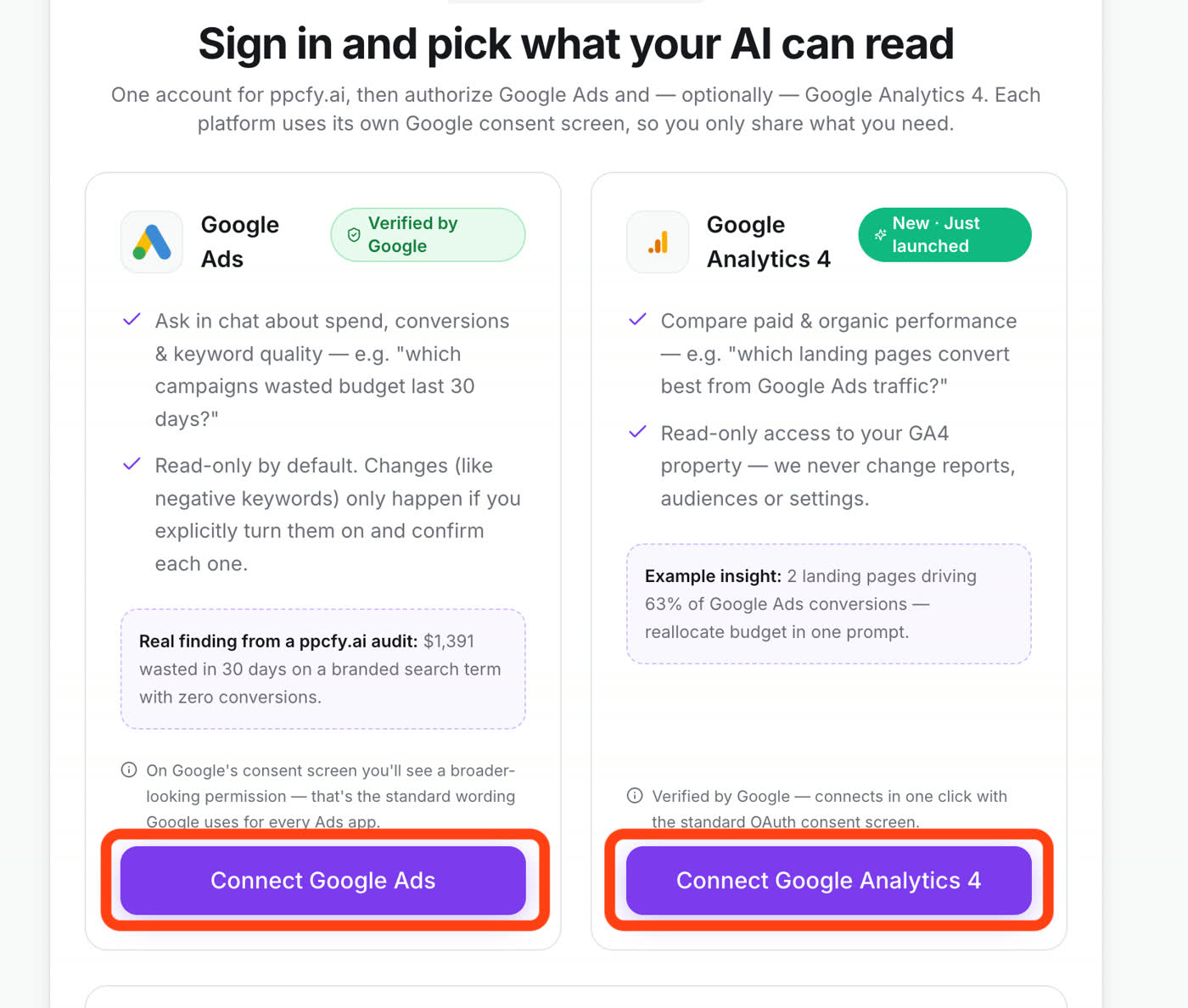
Step 6 — Sign in and choose what your AI can read
Sign in to ppcfy.ai (or create an account in one click), then authorize each platform separately:
- Google Ads — read access via the
adwordsscope. - Google Analytics 4 — optional, read access via
analytics.readonly.
They are fully independent connections. You can use one Google account for Ads and a different one for GA4 — tokens are never mixed between platforms.
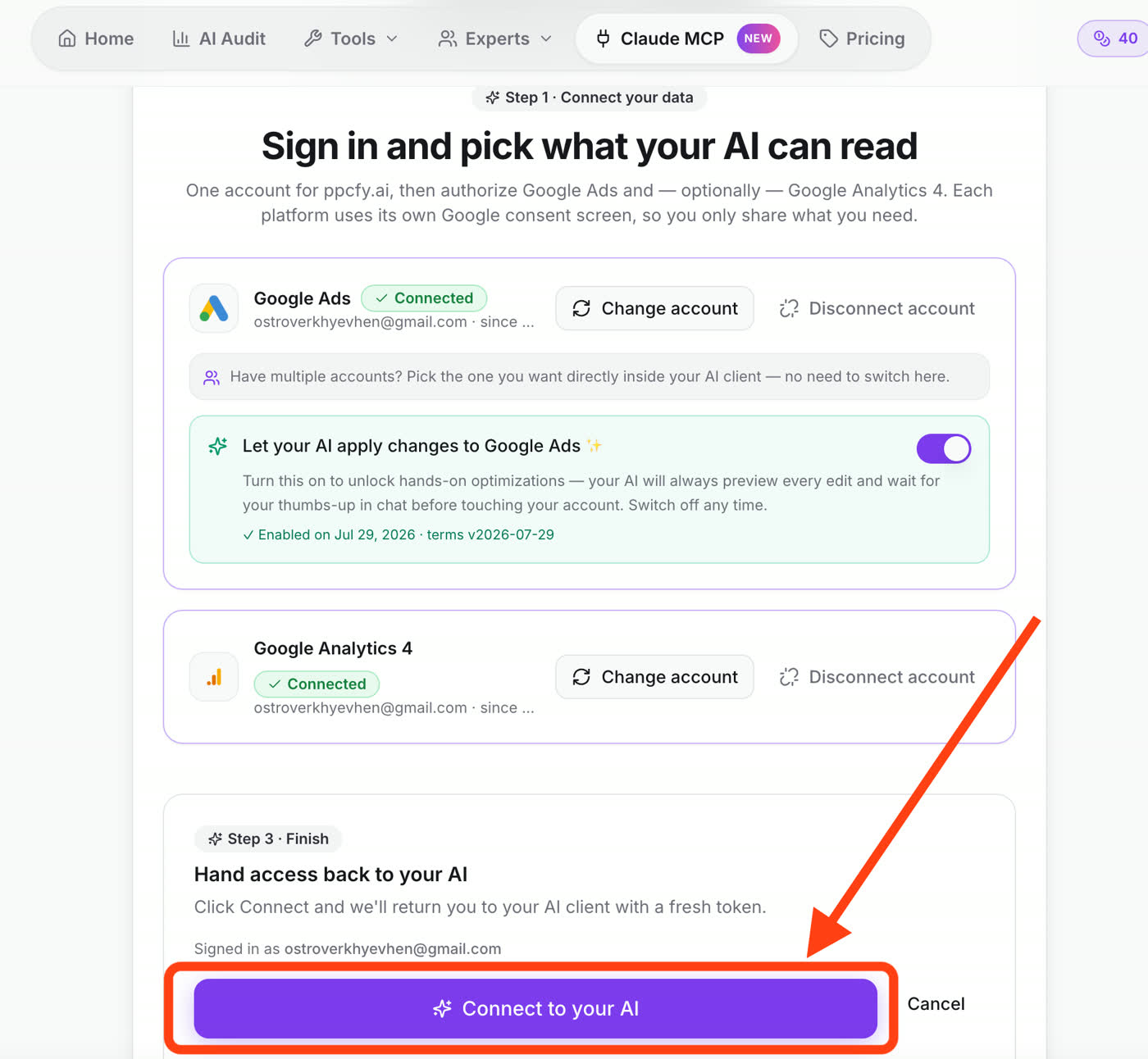
Step 7 — (Optional) allow write actions, then hand access back
Once connected you will see both platforms with the account email. If you want Claude to be able to apply changes — add negatives, pause a campaign, build an ad group — turn on Let your AI apply changes to Google Ads. It stays off unless you enable it, and each edit still needs your confirmation in chat.
Then click Connect to your AI to return to Claude with a fresh token.
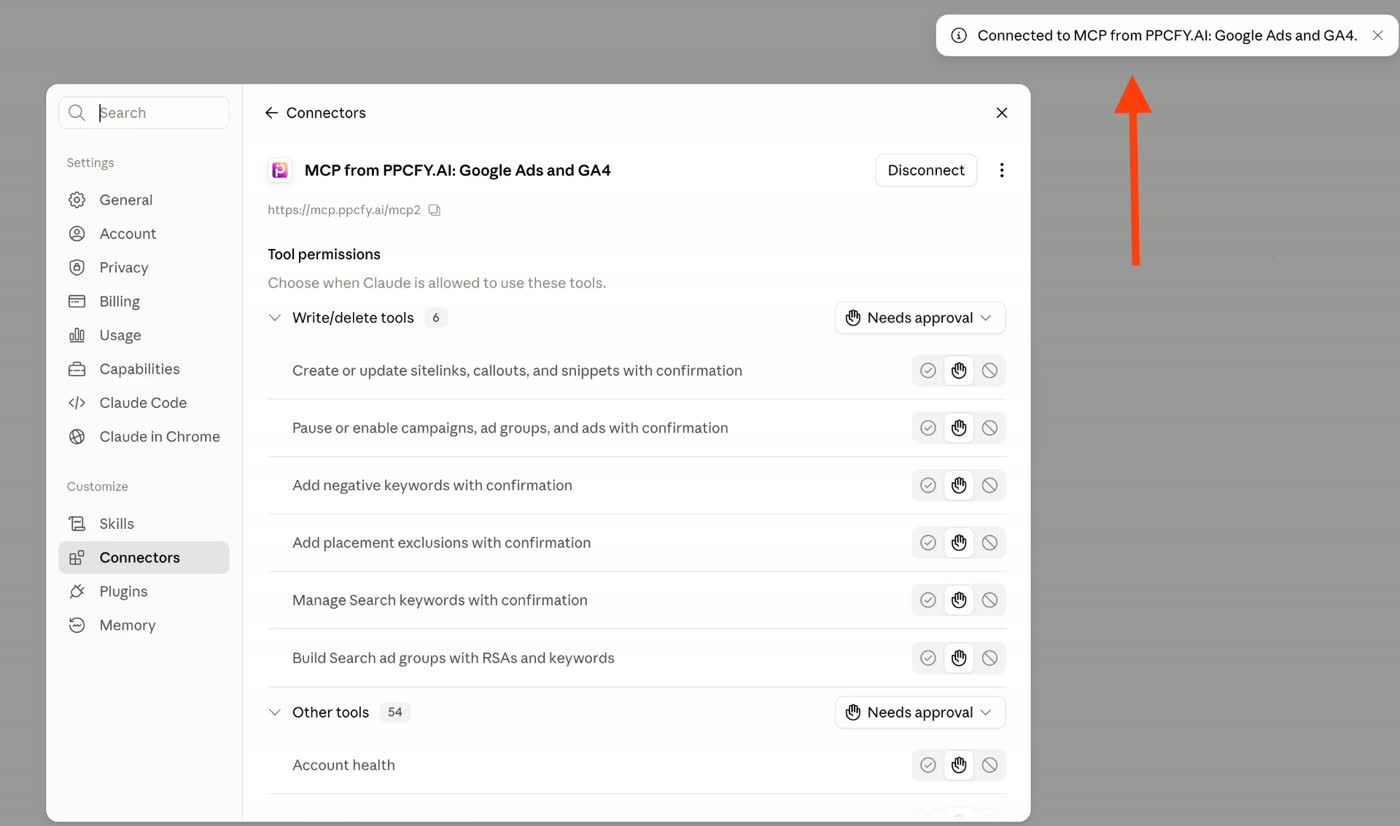
Step 8 — Review tool permissions
Claude confirms the connection and lists every tool, grouped into write/delete tools and read tools. You can set each one to auto-allow, require approval, or block.
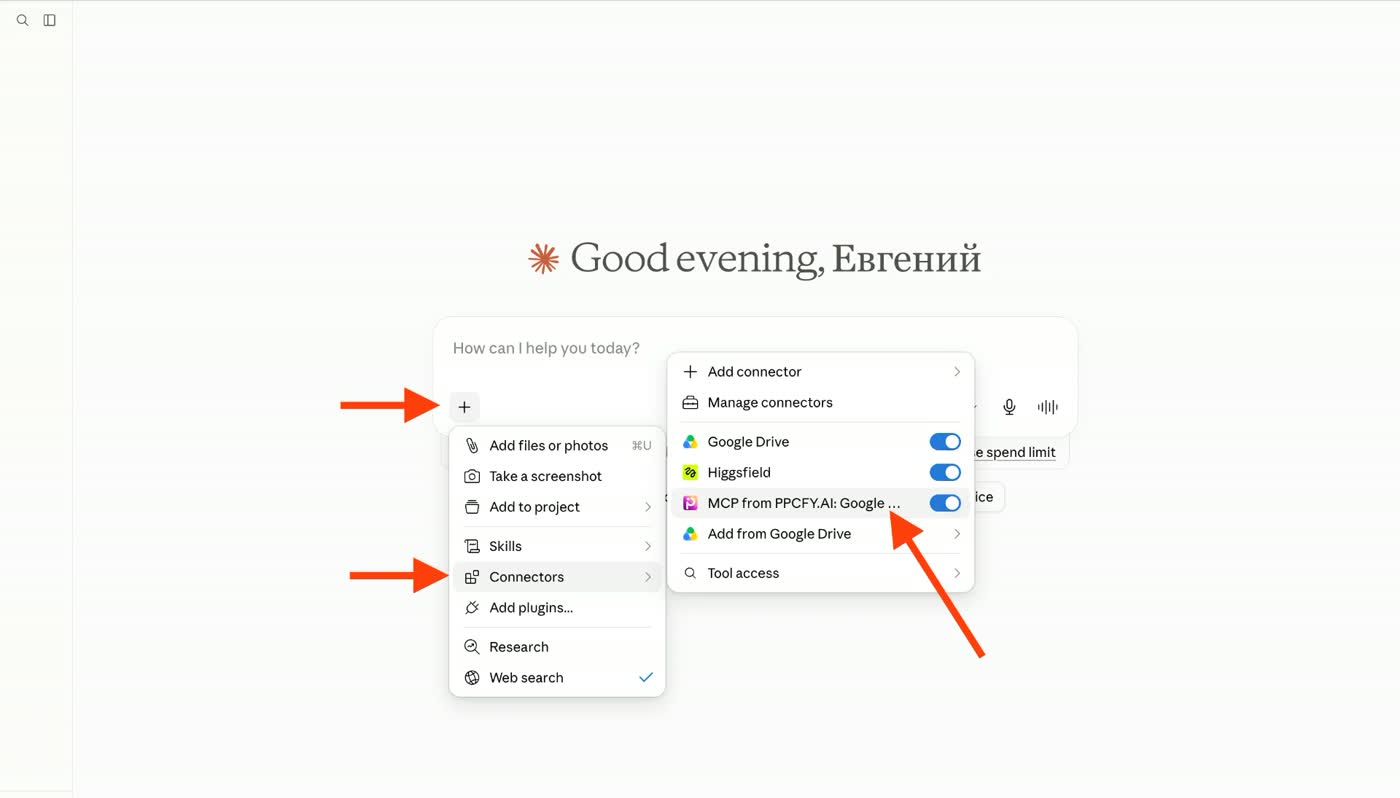
Step 9 — Enable the connector in your chat
In a new chat, click + → Connectors and toggle MCP from ppcfy.ai on. That is it — start asking.
Prompts that work well
- "Audit my Google Ads account for the last 30 days and rank fixes by recoverable spend."
- "Show search terms with cost above $50 and zero conversions in the last 60 days, grouped by intent."
- "Which campaigns are losing impression share to budget while hitting target ROAS?"
- "Compare last month's conversions in Google Ads with GA4 and explain the discrepancy."
- "Draft 10 RSA headlines for the ad group with the lowest Ad Strength."
- "Build a negative keyword list from wasted search terms and apply it after I approve."
Safety model
- Read-only by default on every new connection.
- Mutations are opt-in, revocable at any time, and the accepted terms version is recorded.
- Scopes are checked server-side on every request — if you granted GA4 only, Google Ads tools refuse to answer rather than trusting a cached token.
- Revoking access in your Google permissions page breaks the connection immediately. Nothing is cached around it.
- Disconnect either platform at any time from /mcp-connect.
Does this work with ChatGPT?
Yes — the same URL works anywhere custom MCP connectors are supported. Add https://mcp.ppcfy.ai/mcp2 as a connector and complete the same OAuth flow. Manual token connection is also available on the connect page for clients without hosted OAuth support.
Troubleshooting
"Not connected" in Claude but connected on ppcfy.ai — the connector's OAuth token expired. Remove the connector and add it again.
Google Ads tools return a scope error — you granted GA4 only. Reconnect Google Ads on /mcp-connect.
Claude does not use the tools — check that the connector toggle is on for that chat (Step 9), and name the source in your prompt: "using ppcfy.ai, pull…".
Requests fail after heavy use — check your remaining monthly quota on the connect page; email contact@ppcfy.ai for a higher limit.
Why MCP beats pasting screenshots
An AI reading a screenshot sees one view, one date range, no segments. An AI with MCP access pulls the search terms report, cross-checks conversion actions, joins in GA4 landing-page data, and computes the wasted-spend number itself. The gap in answer quality is not incremental — it is the difference between a guess and an analysis.
Ready? Connect Claude to your Google Ads account free.